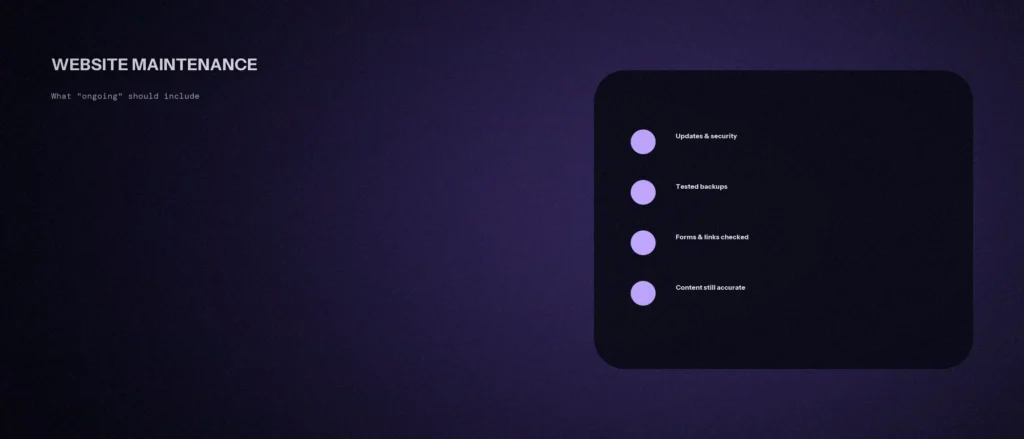
“Ongoing maintenance” on a website maintenance service contract usually means plugin updates. That is real work, but it is a fraction of what a site needs to stay secure, fast and correct after launch. The rest, such as testing backups, checking forms, watching for broken links and reading the content as a stranger would, tends to be skipped until something breaks.
This post is a website maintenance checklist you can use whether you do the work yourself or pay someone: what to do weekly, monthly, quarterly and yearly, why each item matters, and what we found when we ran the checks on our own site. We re-read the WordPress handbook pages on backups and upgrading, and Google’s Search Console help, on 11 October 2026. Where something is our own advice, we say so. If you are about to launch, our website launch checklist comes first.
Quick summary, if you’re short on time:
- Updates are the baseline, not the whole job. The WordPress handbook says to back up your site before an upgrade, so that you can restore it if there are issues.
- The handbook’s backup advice is to keep at least three backups on file, in different places and on different media.
- A backup you have never restored is an assumption. Test a restore on a copy.
- Google’s Security issues report in Search Console shows its findings if it determines that your site was hacked or exhibits harmful behaviour. Check it, and set up email alerts.
- On 11 October 2026 we checked our own site: 0 broken internal links out of 139, and 0 broken external links out of 124. Nineteen external pages refused an automated check, so we confirm those by hand.
Jump to a section:
- The checklist by frequency
- Updates and security
- Backups that work
- The quiet failures
- Content that goes out of date
- What we found on our own site
- What to expect if you pay for maintenance
- A prompt to build your own routine
- Questions about website maintenance
The checklist by frequency
Regular maintenance is a set of small maintenance tasks, done on a schedule, that keep your website performance and security from drifting. The aim is to keep your website secure, fast and correct, and a good user experience follows. Most sites run on a content management system such as WordPress, which is why updates sit at the top of the list.
| How often | What to do |
|---|---|
| Weekly | Check that the site loads, and that the contact form and phone link work. Look at Search Console for new issues. Apply security updates |
| Monthly | Update the core, theme and plugins (on a copy first for big updates). Check backups ran. Submit your own contact form. Check analytics is receiving data |
| Quarterly | Restore a backup on a test copy. Crawl for broken links. Check page speed on your key pages. Review user accounts and remove people who have left |
| Twice a year | Read your key pages as a stranger. Check prices, services, team and opening hours. Review the plugin list and remove what you do not use |
| Yearly | Renew the domain and certificate with plenty of notice. Check hosting is still the right size. Update the year, policies and credentials shown on the site |
Updates and security
Keeping WordPress core, your theme and your plugins updated is the minimum. The WordPress handbook’s guidance on upgrading says it is a good idea to back up your website before you get started, so that if there are issues you can restore it. After the upgrade, it lists steps such as updating permalinks and your .htaccess file, installing updated plugins and themes, and reactivating plugins.
Our own practice, which is our advice and not a handbook rule, is to apply small security updates promptly, and to test larger ones on a copy of the site first, so that a plugin conflict does not take the live site down.
Two more security checks are worth adding to the routine:
- Plugins and risk. The WordPress hardening guide says to make sure your plugins are always updated, and that if you are not using a specific plugin, you should delete it from the system. It also says security is risk reduction, not risk elimination.
- The Security issues report. Google says that if its evaluation determines that your site was hacked, or exhibits behaviour that could harm visitors, such as phishing or installing malware, this report shows its findings. It also says affected pages can appear with a warning label in search results or an interstitial warning in the browser. Check it, and keep your Search Console email notifications on.
- User accounts. Remove people who have left, use strong passwords, and give each person the lowest level of access that does the job.
Backups that work
The WordPress backups handbook says a proper backup of your database and files lets you quickly restore things to normal, and that site backups are essential because problems inevitably occur. Its practical points:
- A WordPress backup covers two things: your files and your database. A copy of only one is not enough.
- Keep at least three backups on file, in case one is corrupted or lost, and store them in different places and on different media.
- Take a fresh backup before any upgrade or large change.
Our addition is the one that people skip: practise the restore. Once a quarter, restore the latest backup to a test location and check that the site loads, that forms work and that images appear. A backup that has never been restored is a hope and not a plan, and the day you need it is a bad day to find a problem.
The quiet failures
These do not announce themselves. No alert appears when a form stops sending email or a page becomes two seconds slower.
- Forms. Test every form you rely on after any plugin, theme or hosting change. Submit it yourself and check the email arrives, and check that spam filters are not catching it.
- Broken links. They build up as other sites change. Crawl your site quarterly. The free version of Screaming Frog crawls up to 500 URLs, which is enough for many small sites.
- Tracking. A tag can stop firing after a site change. On one client site we found the live tag sending data to a different measurement ID than the property the team was reading, so the reports they were checking were empty. Compare the ID in the page source with the one in the data stream settings.
- SEO plugin settings. After a full-site migration, we have seen our own SEO plugin lose its connection and settings. Check its connection, site type and key settings after any move. We have only seen this on our own site.
- Performance monitoring. A simple uptime and speed check, even a free one, tells you when the site goes down or slows. Search engines also expect pages to be usable, so speed problems can affect search ranking indirectly through the user experience. This is our reading and not a Google statement.
- Speed. More plugins, images and scripts get added over time and few are removed. Run your key pages through PageSpeed Insights each quarter and compare with the previous numbers.
- Certificate and domain expiry. Put renewal dates in a calendar with a reminder a month ahead.
Content that goes out of date
A site can be technically perfect and still wrong: a price that changed months ago, a service you no longer offer, a team member who left. None of this triggers an error. It quietly reduces trust, which our post on trust signals on a website covers.
Twice a year, read your key pages as a stranger would and ask three questions: is it still true, is it still the best way to say it, and is there anything missing that customers now ask? Google’s helpful content guidance asks a related question about freshness: it warns against changing the date of pages to make them seem fresh when the content has not substantially changed. Update the date only when you update the page.
What we found on our own site
On 11 October 2026 we ran two checks on the local copy of zunelo.in: every internal link, and every external link, across the 132 pages and posts in our sitemap.
| Check | Result |
|---|---|
| Unique internal link targets | 139, and none returned an error |
| Unique external links | 124. 105 returned a normal page, none returned a “not found” or “gone” error, and 19 refused an automated check |
Those 19 are mostly large news sites and LinkedIn, which commonly block automated requests, so a refusal is not proof of a broken link. We open them by hand. We also found a different kind of problem in the same session: our About page made a promise that “accountability needs a name attached to it” and did not name anyone. We have since added a section naming our lead strategist. A technical check would never find that, which is why the content review matters.
What to expect if you pay for maintenance
If you hire someone, ask for a written list of what is included. A fair maintenance plan names these items:
- Which updates, how often, and whether they are tested on a copy first.
- Where backups are stored, how many are kept, and how often a restore is tested.
- What is monitored, for example uptime, security issues and form delivery.
- What is not included, such as content changes, new pages and design work.
- How quickly they respond if something breaks, and how you will know.
- Who owns the hosting, the domain and the logins. You should.
“Peace of mind” is not an item on a list. If an agency cannot tell you what it does each month, ask again.
A prompt to build your own routine
An AI tool can turn your site’s details into a calendar and a checklist. It does not know your hosting or plugins, so give it real facts, and check each step against the WordPress and hosting documentation.
Act as a careful website maintenance planner for a small business owner who is not a developer. Build a realistic maintenance routine from my facts.
My details:
– What my website does for the business: [for example takes enquiries and bookings]
– Platform and hosting: [for example WordPress on shared hosting]
– The plugins and integrations I rely on: [list, or say not sure]
– Forms, payments or bookings that must never fail: [list]
– Who can make changes today, and how much time I can give each month: [details]
– What I already do: [for example weekly backups, no restore tests]Please do the following:
1. Make a table with columns: task, how often, who does it, how long it takes, and what happens if it is skipped.
2. Mark the three tasks that protect me most if something breaks.
3. Add a quarterly restore test and a form test, with plain steps.
4. List what I should ask my host or agency in writing.
5. Say which of my answers you could not judge.Rules:
– Use only my details. Do not invent plugin names, versions or hosting features.
– Say when a step depends on my host or my plugin and I should check its own documentation.
– Write in plain, simple English.
Put the dates in your calendar for the next three months, and do the first quarterly restore test within two weeks.
Questions about website maintenance
What does website maintenance include?
At minimum: updates to core, theme and plugins, backups and restore tests, security checks, form and tracking tests, broken link and speed checks, and a content review. Updates alone are the baseline, not the whole job.
How often should I update WordPress and plugins?
Apply security updates promptly, and do routine updates monthly. For larger updates, back up first and test on a copy, as the WordPress handbook advises backing up before an upgrade.
How many backups should I keep?
The WordPress backups handbook says to keep at least three backups on file, and to store them in different places and on different media, in case one is corrupted or lost.
How do I know if my site has been hacked?
Google’s Security issues report in Search Console shows its findings if its evaluation determines that your site was hacked or behaves in a harmful way. Warning labels may appear in search results. Check the report and keep notifications on.
How do I find broken links on my website?
Run a crawl. A free tool such as the free version of Screaming Frog, which its makers say crawls up to 500 URLs, lists links that return errors. Fix or remove them, and recheck quarterly.
Do I need a maintenance contract?
Not necessarily. If you can follow a checklist, you can do it yourself. If not, pay for it, but ask for a written list of what is included, how backups are tested and how fast they respond.
How often should I review my site’s content?
Twice a year for most small businesses, and straight away when prices, services, staff or hours change. Update the date on a page only when you have updated the content.
Where this matters
A website needs regular checking, not only updating. Put a short routine in your calendar, test your backups and forms, review the content twice a year, and know who owns every login.
If you would like help with maintenance after launch, see our website development service, or send us your website address and we will tell you what we see.