Most business owners hear about website accessibility after something goes wrong: a customer with a disability cannot use the contact form, a complaint arrives, or a developer mentions it near the end of a build. It is far cheaper to get the basics right while the site is being made, and most of them cost nothing.
This post covers website accessibility basics for a small business site: what accessibility means, the eight checks that cover the most ground, and a 15-minute test you can run yourself today. We checked every Google and W3C statement below against their own pages on 4 October 2026. Where something is our judgment, we say so. If you are about to launch a site, read this with our website launch checklist.
Quick summary, if you’re short on time:
- Google’s accessibility course describes the goal as designing and building sites so that people with disabilities can interact in a meaningful and equivalent way.
- The standard most people follow is WCAG 2.2 from the W3C. It became a W3C Recommendation on 12 December 2024.
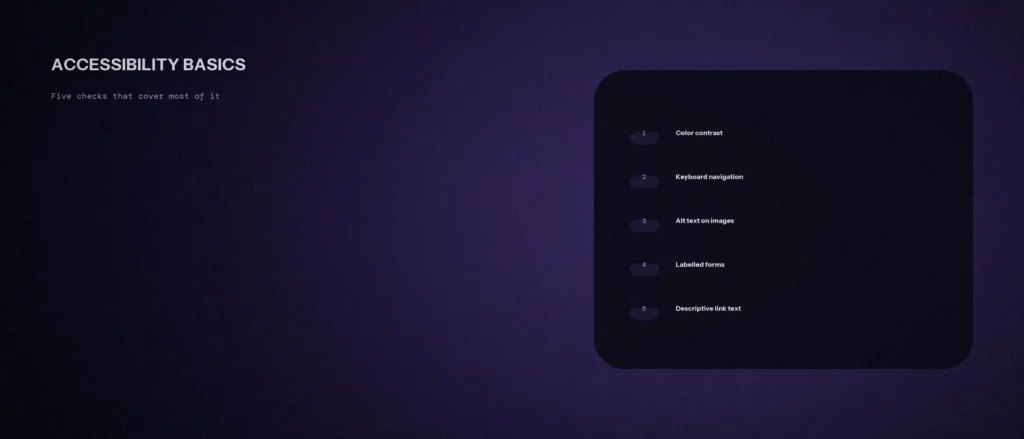
- Start with text contrast, keyboard use, image descriptions, form labels and link text. Then check headings, video captions and text resizing.
- Automated tools help but cannot do it all. The W3C says some checks cannot be automated, so add a manual check.
- This is not legal advice. We only checked India’s government website guidelines, which are written for government sites, so ask a lawyer if a rule applies to your business.
Jump to a section:
- What accessibility means for a business site
- Eight basics that cover the most ground
- A 15-minute check you can do yourself
- Which pages to fix first
- What automated tools can and cannot do
- Accessibility, SEO and the law
- A prompt to rewrite your alt text and link text
- Questions about website accessibility
What accessibility means for a business site
Google’s Learn Accessibility course describes the aim as designing and building websites and web apps so that people with disabilities can interact in a meaningful and equivalent way. In plain words: a customer who is blind, has low vision, cannot use a mouse, or has trouble hearing should still be able to find your services and contact you. Many of them use assistive technologies such as screen readers, which read a page aloud, so how your web pages are built matters as much as how they look.
It also helps people who do not think of themselves as disabled. Someone reading in bright sunlight needs strong contrast. Someone with a broken wrist may use only the keyboard. Someone watching a video on a train needs captions. The fixes below help all of them.
The detailed rules are in the Web Content Accessibility Guidelines, or WCAG, published by the W3C. Version 2.2 became a W3C Recommendation on 12 December 2024. It groups its rules under four principles: perceivable, operable, understandable and robust. Operable, for example, covers keyboard use. You do not need to read it to start, and it also makes a site easier to use for everyone, which is good usability. The eight checks below are drawn from it and from the W3C’s own “Easy Checks” guide.
Eight basics that cover the most ground
- Text contrast. WCAG asks for a contrast ratio of at least 4.5:1 for normal text, and at least 3:1 for large text. Google’s course defines large text as at least 18pt (24px), or 14pt (18.5px) if bold. The W3C does not round the numbers, so 4.499:1 fails. To show how thin the line is: mid-grey text (#777777) on a white background works out at 4.48:1 and fails, while #767676 on white is 4.54:1 and passes. WCAG’s contrast rule also covers placeholder text inside form fields, so pale grey hints need checking too.
- Keyboard use. WCAG says all functionality of the content should work through a keyboard. For you, that means every item in your main navigation, every link, button and form field can be reached and used with the Tab, Enter and arrow keys, and you can always see where you are on the page.
- Image descriptions (alt text). WCAG says non-text content like images needs a text alternative that serves the same purpose. In your HTML this is the alt attribute on the image, and most content systems give you a box for it. Write what the image is for, not just what it is. “Dr. Rao checking a patient’s teeth at our Indiranagar clinic” helps a screen reader user. “IMG_2043.jpg” does not. A purely decorative image can have an empty alt attribute so screen readers skip it. Google’s SEO starter guide also asks for descriptive alt text, so this fix serves both.
- Form labels. Every field needs a visible label that stays on screen, such as “Phone number” above the box. A placeholder inside the box disappears as soon as someone types, so it cannot be the only label. This is our judgment from how placeholders behave, and the W3C lists “Form Field Labels” as one of its Easy Checks.
- Link text. “Click here” and “Read more” mean nothing when a screen reader reads out a list of links. “See our SEO pricing” tells the listener where the link goes. Google’s SEO starter guide also says link text tells users and Google something about the page you are linking to.
- Heading order. Use one main heading, then sub-headings in order, so someone can jump through the page by heading. The W3C includes “Heading Structure” in its Easy Checks. Google’s SEO starter guide says semantic heading order is great for screen readers, but that it does not matter to Google Search whether headings are out of order. So do this for people, not for rankings.
- Video captions. If you have a video on your site, add captions. Without them, the audio is not available to people who are deaf or hard of hearing, and the W3C lists captions among its Easy Checks.
- Text resizing. WCAG says text can be resized up to 200 percent without loss of content or functionality. Zoom your browser to 200% and look for text that gets cut off, buttons that overlap or menus that stop working.
One more W3C Easy Check worth knowing is the skip link. It is a link at the very top of the page that lets keyboard users jump straight to the main content, instead of tabbing through the whole menu every time.
A 15-minute check you can do yourself
You do not need to hire an auditor to find the obvious problems. Open your homepage and run through this list.
- Unplug the mouse (3 minutes). Press Tab repeatedly. Can you reach every link and button? Can you see which one is selected? Can you open the menu and submit your contact form? If you get stuck, a visitor will too.
- Zoom to 200% (2 minutes). Does anything overlap, disappear or run off the screen?
- Check your grey text (3 minutes). Use a free contrast checker on your lightest text, form placeholders and footer links. Anything under 4.5:1 for normal text needs a darker colour.
- Read your links aloud (2 minutes). Scan the page for “click here”, “read more” and “learn more”. Each one should say where it goes.
- Look at your images (2 minutes). In WordPress, open the media library and check the alt text field for the images used on key pages.
- Use a screen reader for two minutes. VoiceOver is built into iPhones and Macs, and TalkBack into Android phones. Switch one on and listen to your homepage with your eyes closed. This shows accessibility issues no checklist will, such as links that all sound the same.
- Fill in your own form (3 minutes). Do the labels stay visible? When you leave a field empty, does the error message say which field and what to do?
We ran six quick checks like these on our own homepage on 4 October 2026. All 3 images had alt attributes, the page language was set, there was one main heading with no skipped levels, there were no “click here” style links, and the homepage has no form fields. It has no skip link, which is the one item from the W3C list we do not have there yet. A short check like this is a starting point, not proof that a site is fully accessible.
Which pages to fix first
Do not try to fix everything at once. Work in the order a customer would meet your site:
- Your homepage and main menu.
- Your main service pages.
- Your contact page and any enquiry or booking form. This is where a barrier costs you a lead directly.
- Pages with video, since captions are easy to forget.
- Older blog posts, last.
If you are building or redesigning a site, put these checks into the brief from the start. Fixing contrast and labels during design takes minutes. Fixing them across 40 finished pages takes days. If you are planning a new site, ask your developer to meet these checks and test for them before launch. You can also see how we build sites on our website development service page.
What automated tools can and cannot do
Free tools help. Lighthouse, built into Chrome, includes an accessibility audit. But Google’s own scoring documentation says manual audits are not part of the Lighthouse accessibility score. The W3C says the same thing about evaluation tools in general: tools can’t do it all, and some checks cannot be automated and need a person.
A tool can tell you an image has no alt text. It cannot tell you whether the alt text you wrote is useful. A tool can measure contrast, but it cannot tell you whether your page makes sense when read aloud. So use both: run the tool, then do the 15-minute check above. A score of 100 is not proof that a site works for everyone.
Accessibility, SEO and the law
SEO. We are not claiming accessibility fixes will lift your rankings. What we can say is that some of the work overlaps. Google’s SEO starter guide asks for descriptive alt text and good link text, and these are also accessibility basics. If you are already doing on-page SEO, you are partly there. Our on-page SEO checklist covers the SEO side.
The law. Rules differ by country, industry and sometimes by business size, and the Google course itself says these choices have a business and legal impact. In India, the Guidelines for Indian Government Websites and Apps (GIGW 3.0) have an accessibility section that adopts its success criteria from the W3C’s WCAG. Those guidelines are written for government websites and apps, so we cannot tell you they bind a private business site. We have not checked any other Indian accessibility rule for this post, and we are not lawyers. If you work in a regulated area, or sell to government or large companies that ask for accessibility reports, speak to a lawyer or an accessibility specialist.
A prompt to rewrite your alt text and link text
Alt text and link text are the two fixes that take the most typing. An AI tool can draft them quickly if you give it your real list. It cannot see your images, so you must describe each one. Check every line before you save.
Act as a careful web accessibility editor for a small business website. I will give you a list of my images and links. Rewrite them so they are clear for someone using a screen reader.
My details:
– What the business does and where: [one line]
– My images, one per line, as “file name: what it shows and where it sits on the page”: [list]
– My links, one per line, as “current link text: where it goes”: [list]
– Anything that is purely decoration: [list, or say none]Please do the following:
1. Write alt text for each image: one short sentence that says what the image is for in this page. Mark decorative images as “empty alt”.
2. Rewrite every vague link text so it names the destination, in 2 to 5 words.
3. Give me a table with columns: current, new, and why.Rules:
– Describe only what I told you is in the image. Do not invent details, names, or numbers.
– If you are unsure what an image shows, ask me instead of guessing.
– Do not start alt text with “image of” or “picture of”.
– Write in plain, simple English.
Read each new line the way a screen reader would say it. If it sounds odd out loud, change it.
Questions about website accessibility
What is the easiest accessibility fix to start with?
Link text and alt text. Both can be edited in your content system without a developer, and neither changes how your site looks. After that, check your grey text for contrast and your form labels.
Is a small business website legally required to be accessible?
It depends on your country, industry and size. For this post we only checked India’s government website guidelines, which are written for government sites. Treat the basics as good practice either way, and ask a lawyer if you work in a regulated area or sell to organisations that ask for accessibility reports.
Does website accessibility help SEO?
Some of the work overlaps. Google’s SEO starter guide asks for descriptive alt text and good link text. We would not promise ranking gains from accessibility alone, so do it mainly because it helps real visitors.
Can a free tool tell me if my site is accessible?
Not fully. Lighthouse can find problems like missing alt text and low contrast. But Google says manual audits are not part of its score, and the W3C says some checks cannot be automated. Use the tool and then do a manual check.
Can I use a placeholder instead of a form label?
We would not. A placeholder disappears when someone starts typing, so they lose the hint. Keep a visible label above the field. If you also use a placeholder, make sure its colour meets the contrast rule too, because WCAG covers placeholder text.
What does WCAG 2.2 mean and do I need to read it?
WCAG stands for Web Content Accessibility Guidelines, and version 2.2 is the current W3C Recommendation, published on 12 December 2024. You do not need to read all of it. The eight checks in this post are a practical starting point drawn from it.
How often should I recheck my site?
Whenever you change the design, add a form or add a video, and otherwise every few months. New pages bring new problems, even on a site that passed a check before.
Where this matters
Accessibility is mostly small, practical fixes: darker grey text, real form labels, clear link text and honest alt text. Run the 15-minute check on your homepage and contact page this week, fix what you find, and build the checks into every new page.
If you would like a second pair of eyes on your site, send us your website address and we will tell you what we see.