If your website feels slow, you can fix a lot of it without writing a line of code. Common causes of a slow website are oversized images, too many plugins and scripts, and a server that rebuilds every page for every visitor.
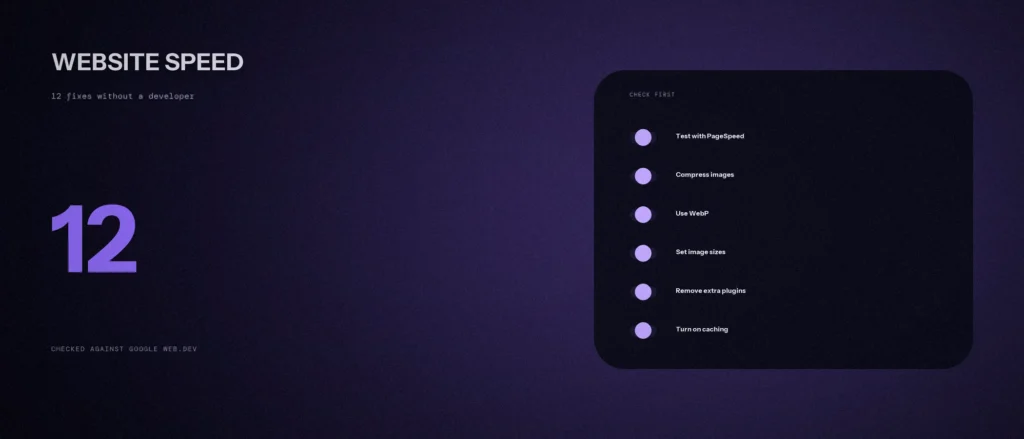
This post shows how to increase website speed with 12 website speed optimization fixes you can make yourself, in the order we would do them. We checked every Google fact below against Google’s own web.dev and PageSpeed Insights pages on 3 October 2026. Where the advice is our own judgment and not something Google says, we tell you. Our post on page speed vs page weight explains what is slowing a site down, and this one is the list of fixes.
Quick summary, if you’re short on time:
- Test first. PageSpeed Insights shows lab results and, when your site has enough visits, real-user results from the last 28 days.
- Google’s targets are Largest Contentful Paint within 2.5 seconds, Interaction to Next Paint of 200 milliseconds or less, and Cumulative Layout Shift of 0.1 or less.
- Images are the first place to look. Google says the largest element on more than 70% of pages involves an image. Compress them, use WebP, set their width and height, and never lazy-load the main image at the top of the page.
- Remove plugins and scripts you do not need, and load the ones you keep without blocking the page.
- Turn on caching, cut redirects, and test again after your changes have had time to show up in the real-user data.
Jump to a section:
- All 12 fixes on one page
- Fixes 1 and 2: measure first
- Fixes 3 to 6: fix your images
- Fixes 7 to 10: plugins, scripts and fonts
- Fixes 11 and 12: caching and redirects
- Do not chase a perfect score
- A prompt to plan your speed fixes
- Questions about website speed
All 12 fixes on one page
| # | Fix | What it helps |
|---|---|---|
| 1 | Test your key pages in PageSpeed Insights | Shows what to fix first |
| 2 | Find your largest element | Loading speed (LCP) |
| 3 | Compress and resize images | Loading speed (LCP) |
| 4 | Use WebP | Loading speed (LCP) |
| 5 | Lazy-load the right images only | Loading speed (LCP) |
| 6 | Set image width and height | Page jumping (CLS) |
| 7 | Remove plugins you do not use | Response to taps (INP) |
| 8 | Load third-party scripts without blocking | Loading and response (LCP, INP) |
| 9 | Cut down your web fonts | Loading and page jumping |
| 10 | Reserve space for ads, embeds and videos | Page jumping (CLS) |
| 11 | Turn on caching | Server response time (TTFB) |
| 12 | Cut redirects | Server response time (TTFB) |
You do not need all 12 in one day. Start with 1 to 6, because images and measuring cover the most ground for the least effort.
Fixes 1 and 2: measure first
1. Test your key pages in PageSpeed Insights
Do not guess what is slow. Open Google PageSpeed Insights, paste the address of your homepage and your main service page, and run the test for mobile. It gives you two kinds of result. Lab data comes from Lighthouse, which simulates a page load and is useful for finding problems. Field data comes from real visitors and shows what people actually experience.
Google says field data covers the previous 28-day collection period. A page that is new or has few visits may not have enough data. In that case PageSpeed Insights falls back to data for the whole site, and if the site does not have enough either, it cannot show real-user data at all. A newer site may only see lab data at first, and that is normal.
Google’s Core Web Vitals guide sets three targets: Largest Contentful Paint within 2.5 seconds, Interaction to Next Paint of 200 milliseconds or less, and Cumulative Layout Shift of 0.1 or less. It suggests measuring at the 75th percentile of page loads, across mobile and desktop. Write your current numbers down before you change anything.
2. Find your largest element
Largest Contentful Paint, or LCP, is the time until the biggest thing in the first screen appears. Google’s page on images says that on more than 70% of webpages the largest element in the initial viewport involves an image. That is usually your hero photo, a banner or a logo.
The lab section of the PageSpeed Insights report comes from Lighthouse, which shows a “Largest Contentful Paint element” diagnostic that names it. Once you know which one it is, you know where to spend your effort. If it is an image, fixes 3 to 5 matter most. If it is text, look at fonts and server speed.
Fixes 3 to 6: fix your images
3. Compress and resize images
A photo straight from a phone or camera can be several megabytes and thousands of pixels wide, far more than any screen needs. Resize each image to the largest size it will be shown at, then compress it before you upload. Some WordPress plugins can do this for you when you upload.
We cannot tell you how much time this saves on your site, because that depends on how big your images are today. Run the test again after you change them and compare.
4. Use WebP
WebP is an image format developed by Google. Google says it was built to produce files smaller than a JPEG of comparable quality. Smaller files download faster. Some WordPress plugins can convert your images to WebP and serve them for you.
Keep your original files somewhere safe, and check a few important pages after the change to make sure nothing looks wrong.
5. Lazy-load the right images only
Lazy loading means an image is only downloaded when the visitor scrolls near it. Chrome loads images below the viewport lazily when you add loading="lazy", which saves data for pictures nobody scrolls to.
Do not do this to the image at the top of the page. Google’s LCP guide says to never lazy-load your LCP image, because it always adds unnecessary delay. Check your theme and speed plugin settings in case they lazy-load every image, and exclude the first image on each page if you can.
6. Set image width and height
If the browser does not know how big an image will be, it cannot leave space for it. The text then jumps down when the image arrives, and that jump is what Cumulative Layout Shift measures. Google’s guidance is to always include width and height attributes on your images and video elements, or to reserve the space with the CSS aspect-ratio property.
Check that your images have them, especially ones added by a page builder or theme. Then click through your main pages on a slow connection and watch for jumping.
Fixes 7 to 10: plugins, scripts and fonts
7. Remove plugins you do not use
Every active plugin can load its own code on your pages. Google’s guide to Interaction to Next Paint explains that after a script is downloaded, the browser still has to parse and compile it, and that this work can create long tasks that delay the page’s response to a tap or click.
Open your plugin list and ask of each one: do we use it, and does it need to run on every page? Deactivate and delete what you do not use. Our view is that two or three well-chosen plugins beat ten overlapping ones, but that is our judgment, not a Google rule. Take a backup before you remove anything.
8. Load third-party scripts without blocking the page
Chat widgets, tracking pixels, heat maps and review badges are third-party scripts. Google’s guide on loading them says that a third-party script slowing down your page load leaves you two options: remove it, or optimize how it loads. It recommends loading third-party scripts asynchronously unless the script has to run before the page can be rendered, using the async or defer attribute.
Ask for each script: do we look at the results? If nobody does, remove it. For the ones you keep, a tag manager or a speed plugin can often set them to load after the page. That guide was last updated in 2019, so test the result on your own page.
9. Cut down your web fonts
Custom fonts are files the browser must download. Google’s font guide says font swapping, where the page first shows one font and then switches, can cause layout shifts. It also says WOFF2 compresses 30% better than the older WOFF format.
Use as few font families and weights as you can. If you use Google Fonts or a theme font, check how many weights are loading, and drop the ones you never use. Self-hosted fonts should be in WOFF2.
10. Reserve space for ads, embeds and videos
Google’s layout shift guide lists ads, embeds and iframes without dimensions among the common causes of shifting. A YouTube embed, a map or a booking widget that loads late can push everything below it down the page.
Give each of them a fixed box with the right size. Most embed codes include a width and height, so do not delete them. For a map or video lower down the page, a fixed-height container stops the jump.
Fixes 11 and 12: caching and redirects
11. Turn on caching
Time to First Byte, or TTFB, is how long it takes for the first bytes of your page to reach the visitor. Google says a high TTFB can make hitting a 2.5 second LCP challenging, or even impossible. Among its listed causes are visitors located far from the nearest server and an inability to use cached content.
Page caching saves a ready-made copy of each page so your server does not rebuild it for every visitor. Most good hosts include a caching option, and WordPress caching plugins do the same job. A content delivery network, or CDN, serves copies from a location nearer the visitor. Ask your host what they already include before you add anything.
12. Cut redirects
The same Google guide lists multiple server redirects among the causes of a high TTFB. A common example is an address that goes from http to https, then to the www version, then to a final page. Each step makes the visitor wait.
Type your old address into a redirect checker and see how many hops it takes. In our view, aim for one redirect at most, straight to the final page. Fix the links on your own pages so they point to the final address and do not rely on a redirect.
Do not chase a perfect score
A score of 100 in Google PageSpeed Insights is not the goal. The score comes from a lab test on a simulated device. Google’s own targets are about real visitors: good results at the 75th percentile of page loads. If your real-user numbers are in the good range, extra work on the lab score may not be worth your time.
Test again a few days after your changes to see the lab effect. Field data covers the previous 28 days, so it takes about a month for a full change to show there.
A prompt to plan your speed fixes
An AI tool cannot test your site, but it can turn your PageSpeed Insights results into a short to-do list. Paste in your real numbers and check its advice against the fixes above.
Act as a careful website speed advisor for a small business owner who is not a developer. Help me plan fixes I can make myself.
My test results (PageSpeed Insights, mobile):
– Page tested: [address]
– Largest Contentful Paint: [seconds], and the element it names: [image, text, other]
– Interaction to Next Paint: [milliseconds, or “no data”]
– Cumulative Layout Shift: [number, or “no data”]
– Time to First Byte: [seconds, or “no data”]
– My site runs on: [WordPress, Shopify, other]
– Plugins I have installed: [list them, or say not sure]
– Hosting and caching: [host name, caching plugin if any, or not sure]Please do the following:
1. Tell me which three fixes to do first and why, in plain words.
2. For each fix, give me one simple step I can do without a developer.
3. Tell me which problems need a developer or my host.Rules:
– Use only the numbers I gave you. Do not invent speeds or promise results.
– If you need a detail I did not give you, say what it is.
– Write in plain, simple English.
Make one change at a time and test again, so you know what worked.
Questions about website speed
What is a good page load time for a website?
Google does not give one number for the whole page. Its targets are Largest Contentful Paint within 2.5 seconds, Interaction to Next Paint of 200 milliseconds or less, and Cumulative Layout Shift of 0.1 or less, measured at the 75th percentile of page loads. Use those three, and test on mobile.
Why is my website slow on mobile?
The usual causes are large images, too much script and a slow first response from the server. Run PageSpeed Insights on mobile and look at which metric is outside Google’s targets. That tells you where to start: LCP points to images or the server, CLS to missing sizes, and INP to heavy scripts.
Do I need a developer to speed up my website?
Not for most of this list. Compressing images, using WebP, removing unused plugins, turning on caching and setting image sizes can usually be done by a site owner. You may need a developer or your host for server settings, custom code and problems inside your theme.
Does website speed affect search engine rankings?
Google says Core Web Vitals are used by its ranking systems, and that there is no single signal. It recommends good Core Web Vitals for success with Search and for a great user experience. Google also says there is more to a great page experience than these scores alone, so do not expect speed to fix weak content.
How often should I test my website speed?
Test after each change you make, and check your real-user numbers about once a month. PageSpeed Insights field data covers the previous 28 days, so a change takes around a month to show up there fully. Lab results change straight away.
Will a speed plugin fix everything?
No. A plugin can handle caching, compression and delayed loading, but it cannot fix a hero image that is far too large, a slow host or a script you should remove. Use one well-reviewed plugin, set it up carefully, and test your key pages after you switch things on.
Where this matters
Website speed optimization is not one big job, and better website performance comes from a series of small ones: measure, shrink the images, remove what you do not need, and turn on caching. Do the first six fixes and test again before you decide what is next.
If you would like a second pair of eyes on your site, send us your website address for a free audit. We tell you what we see, with no promises about scores.